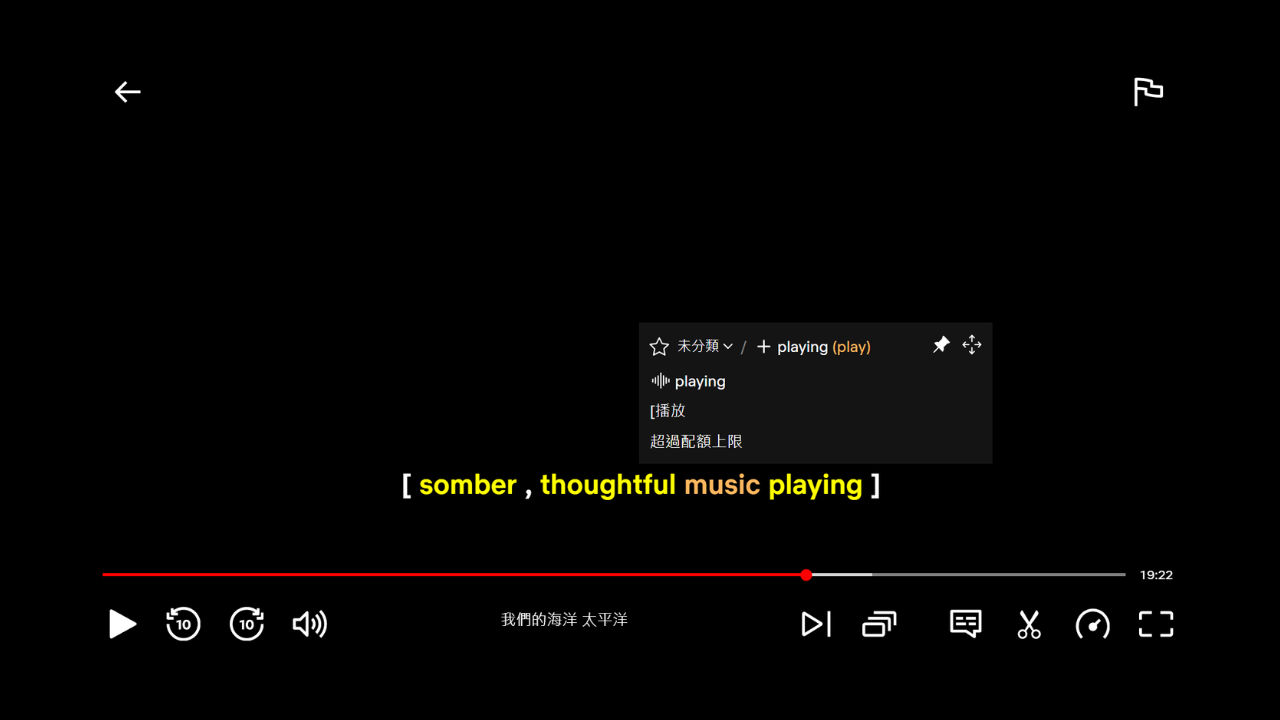
Connecting Netflix Billigual Subtitles
Connecting Netflix Billigual Subtitles
-
Log in to LangZero.
-
Log in to Netflix Billigual Subtitles.
-
In the Netflix Billigual Subtitles settings, enable Learning Mode with LangZero.
-
Words that have been added to your vocabulary list will be highlighted in yellow.
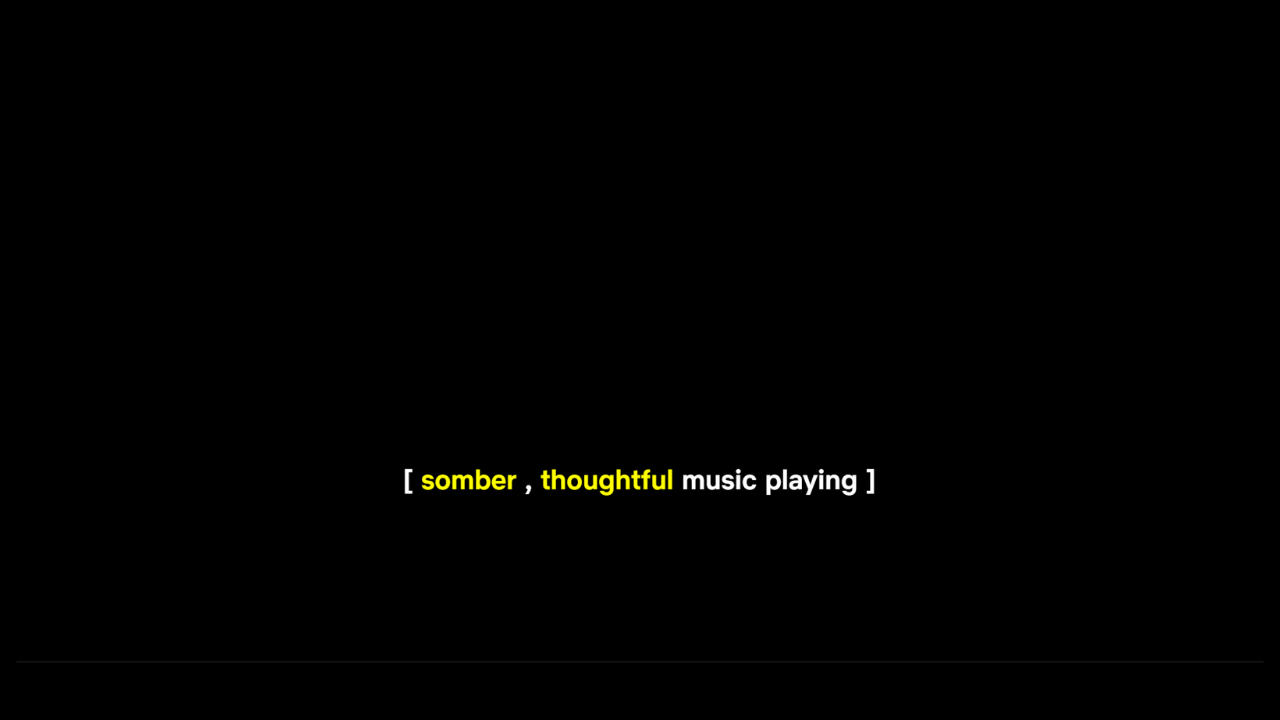
Collecting Words
-
Click on the word you want to save.
-
In the popup window, find the "+" button (as shown by the red arrow below), and click on the word next to it to add it to your collection.
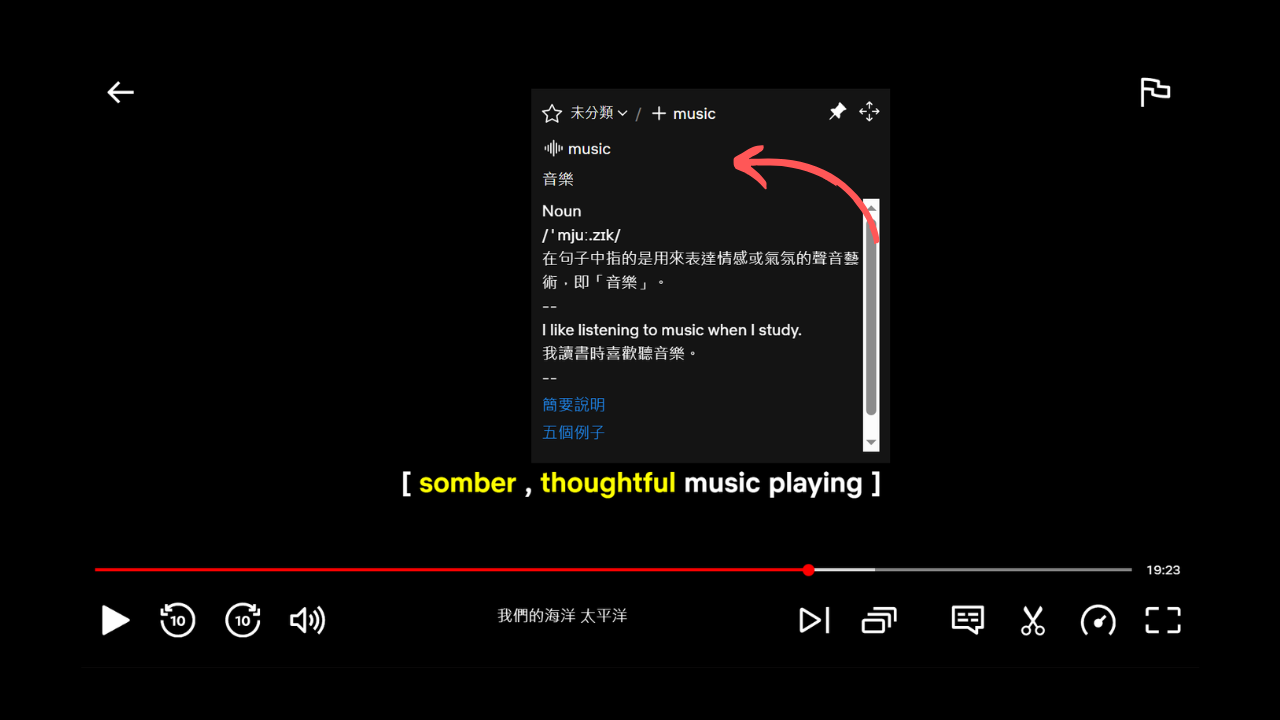
- Words that have been added to your collection will be highlighted in orange.
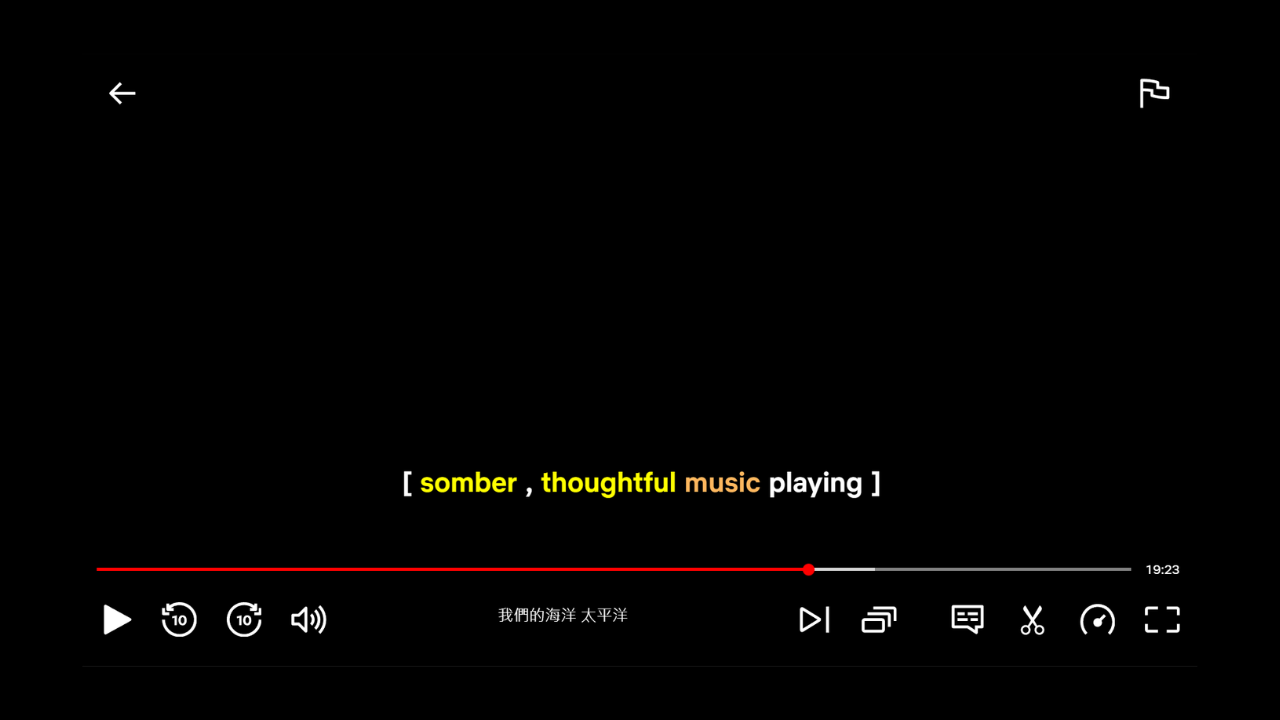
- Collected words can be viewed in the "NBS" tab in LangZero.
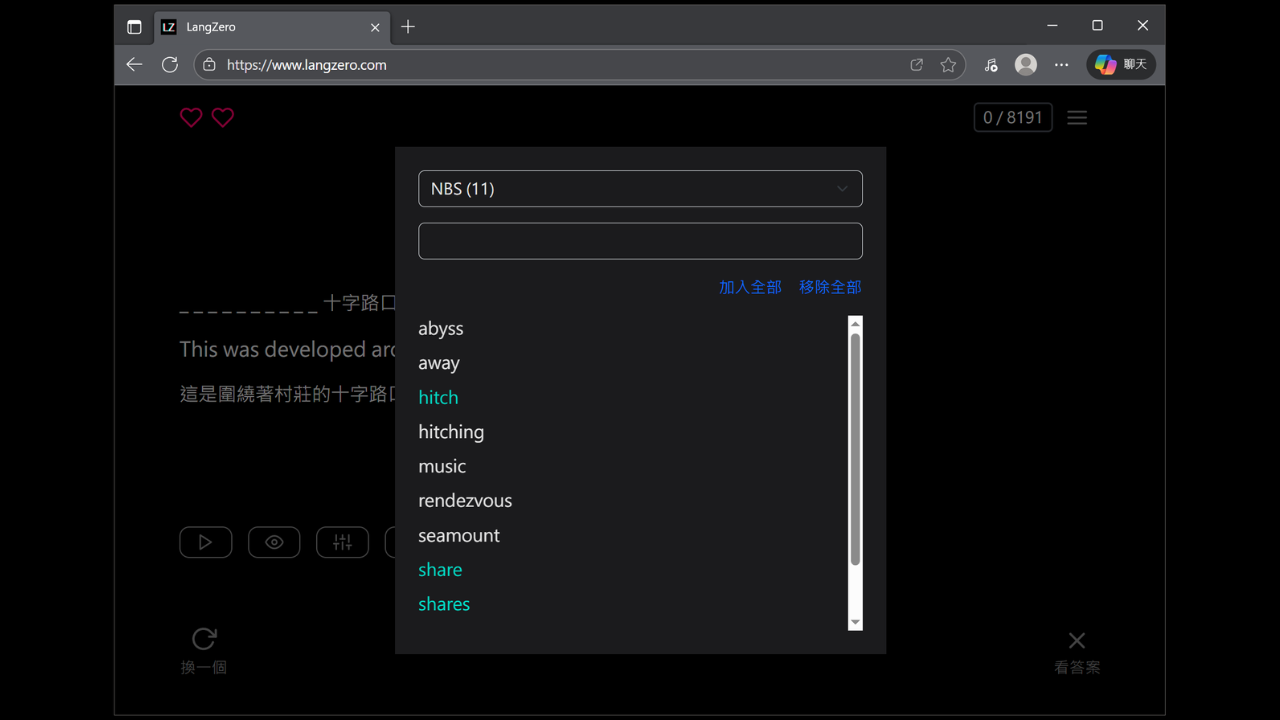
Lemma Processing
By default, Netflix Billigual Subtitles does not automatically recognize different inflected forms of a word. For example, even if "play" is already in your vocabulary list, "playing" will not be highlighted.
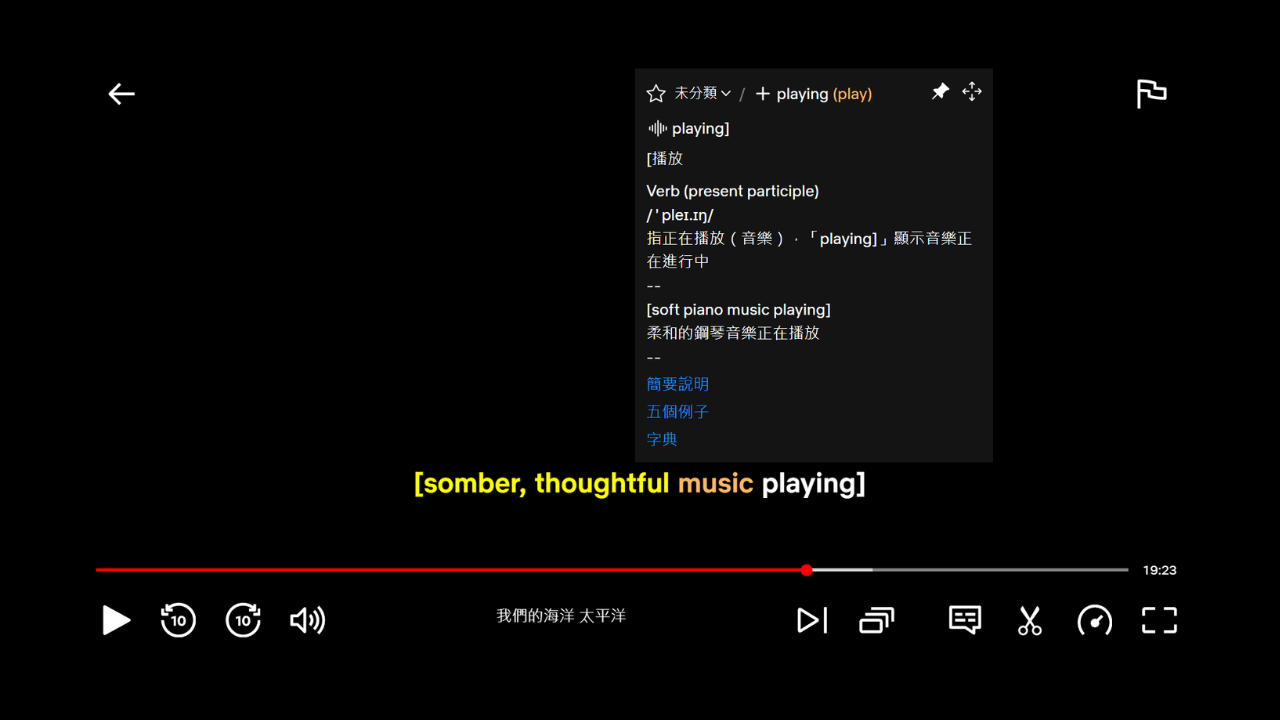
To enable the extension to recognize all inflected forms of the same lemma, follow these steps for tokenization:
Click the "w" button to perform tokenization and obtain lemma information.
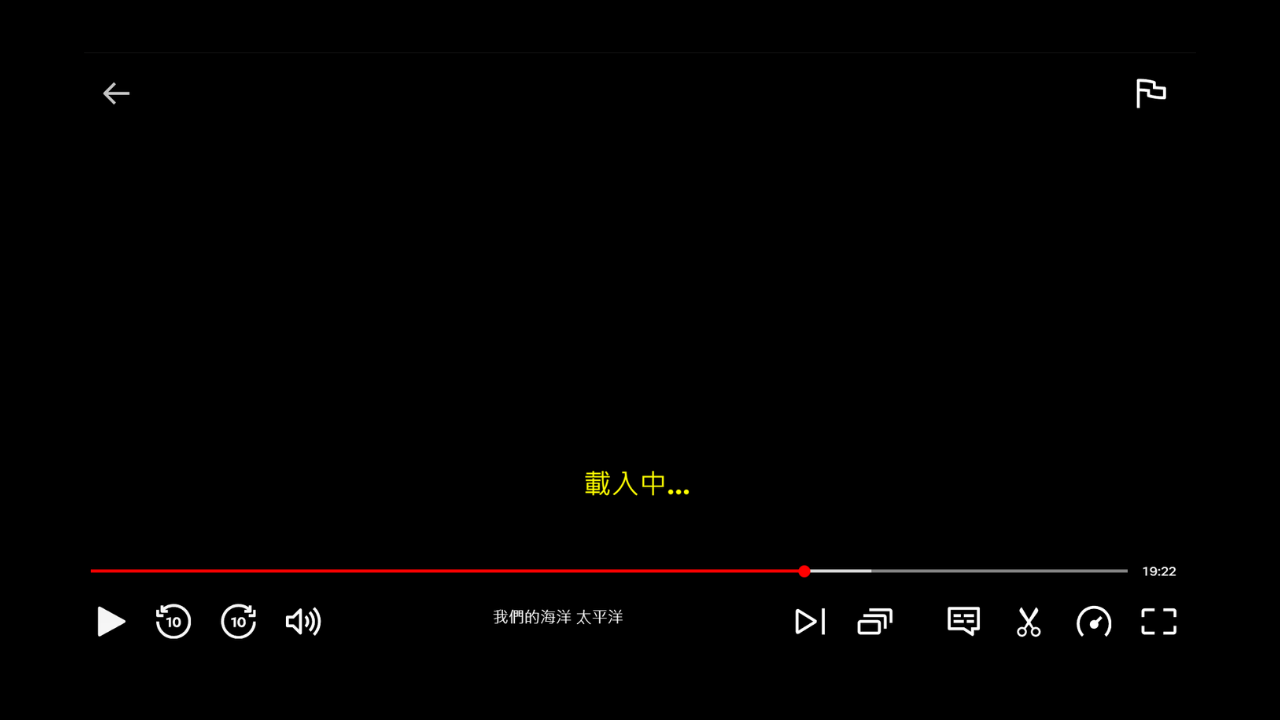
Once tokenization is complete, the extension will be able to recognize various inflected forms of the lemma.
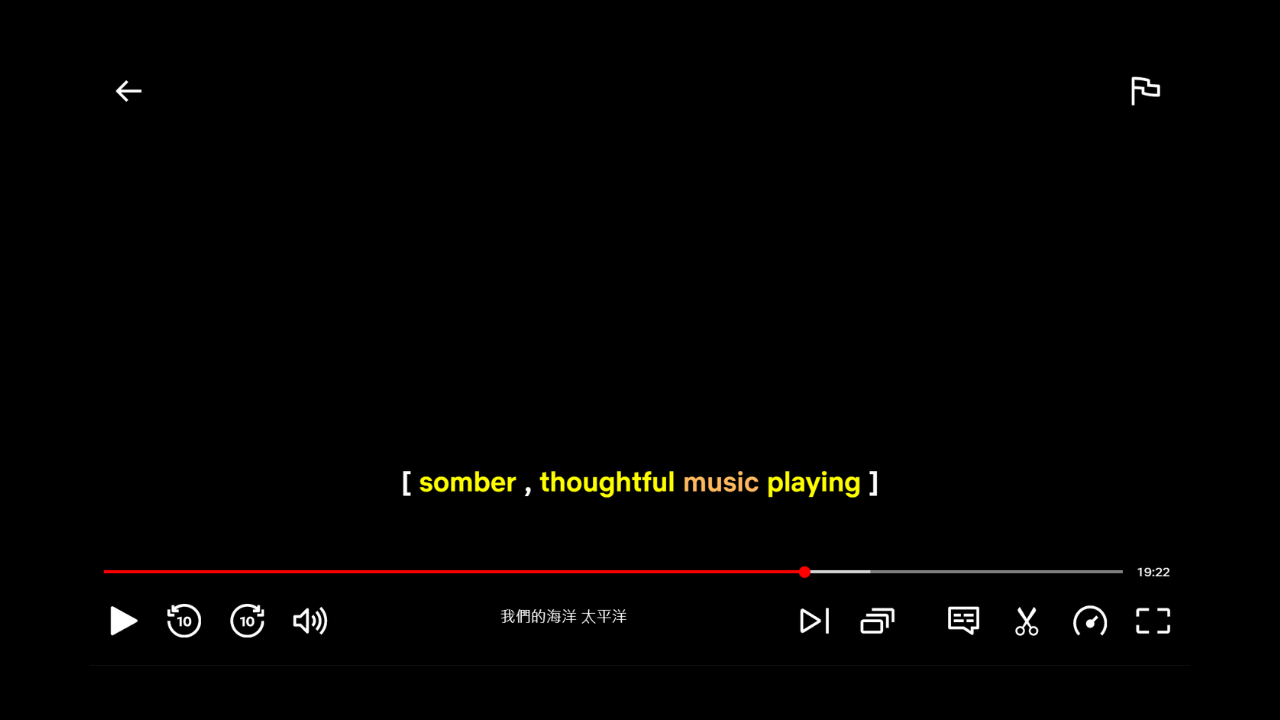
The corresponding lemma information will also be displayed in the popup window.