
Shadowing mode
Subtitles scroll horizontally along the timeline like a ticker—read along as you watch, and record yourself to compare pronunciation.
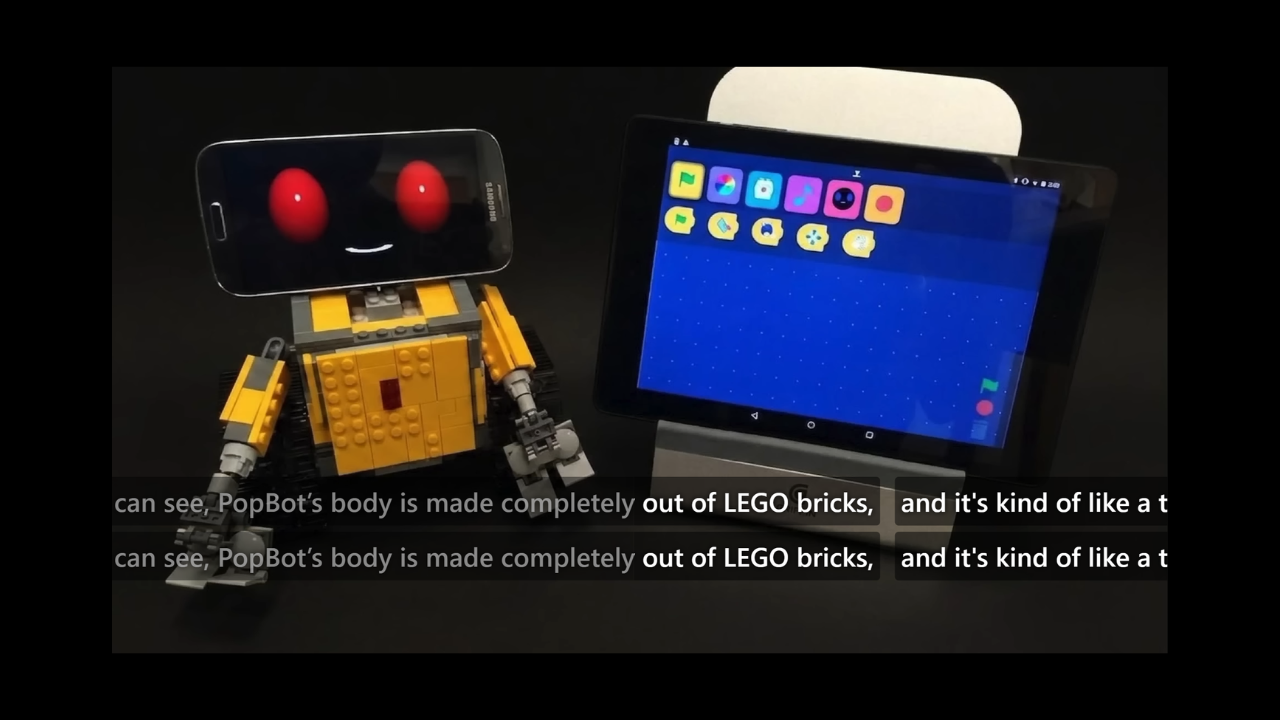
Shadowing mode arranges subtitles in a horizontal “ticker”: lines slide from right to left across the center of the screen along the timeline. You read along with the current line—words you’ve passed can fade to gray, and upcoming words can be hidden so you focus on the rhythm in front of you. When you need to, you can also record yourself with the same shortcuts as Speaking and play it back to compare.
How to start
In the Settings tab, switch mode to Shadowing. While the video plays, subtitles no longer sit still on the screen—they move left along the center line, which marks “now.”
- Drag subtitles left/right: Fine-tune alignment for the current line.
- Adjust center line position: If needed, shift the center line slightly left or right.
Shadowing mode supports text subtitles only. Image-based subtitles from platforms like Netflix won’t appear as a scrolling ticker.
Recording and playback
In Shadowing mode you can use Speaking’s record / replay / mic shortcuts (no need to switch to Speaking mode):
- Alt + F: Hold to record, release when you’re done
- Alt + R: Tap to start or stop recording (no need to hold)
- Alt + G: Replay your recording
- Alt + M: Toggle mic monitoring (hear yourself while you speak)
These shortcuts can be customized in the extension’s Shortcuts tab. Full list: Keyboard shortcuts.
What you can adjust
- Fade read text (on by default): Words to the left of the center line—already read—fade out.
- Hide ahead (off by default): Hide words to the right of the center line that haven’t arrived yet.
- Auto-enable remove line breaks (on by default): Temporarily turn on subtitle preprocessing’s “Remove line breaks” while shadowing so each line stays on one row; your original preprocessing choices won’t be changed.
You can turn both display switches on: fade read text and hide what’s ahead—only words near the center line stay visible.
Practice tips
- Start with regular watch mode to get the gist and rhythm.
- Switch to Shadowing and read along with the center line; drag left/right on rough spots to replay that line.
- For a tougher listening challenge, turn on Hide ahead and rely on your ears for the next line.
- After practicing, press Alt + G to replay your recording and compare with the original. For more focused speaking practice, switch to Speaking mode; want every word clear first? Start with Dictation.